
How to turn wireless WiFi on/off Windows 7, 8, 8.1, & 10

Updated: Jan 2, 2020
Description
This article describes how to turn the WiFi radio on or off. Follow the provided instructions to enable the wireless card.
There are several ways to turn the wireless radio on or off.
Software switch
Physical switch
Operating Systems
Windows 7
Windows 8, 8.1
Windows 10
Solution
Turn On/Off WiFi via Software Switch
Windows 7
1. Go to the Start Menu and select Control Panel.
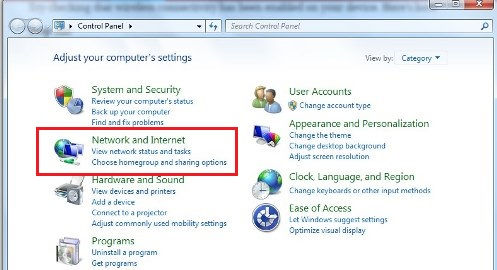
2. Click the Network and Internet category and then select Networking and Sharing Center.

3. From the options on the left-hand side, select Change adapter settings.

4. Right-click on the icon for Wireless Connection and click enable. This allows connecting to a WiFi network from the Network and Sharing center.
Note: There may be more than one wireless network adapter icon as shown in the image below. Select the one that is associated with your network card. For example, Broadcom, Intel etc.
If there are no wireless adapters available, see Unable to detect any wireless networks in range Window 7, 8 & 10.

Window 8 & 8.1
1. From the Windows Start Screen, search Turn wireless devices on or off.
2. Enable or disable Airplane Mode to stop all wireless communication. Under Wireless Devices, choose whether to enable or disable WiFi and Bluetooth.
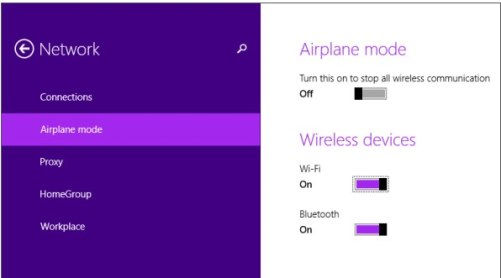
If there is no Wi-Fi option present, see Unable to detect any wireless networks in range Window 7, 8 & 10.
Windows 10
1. Click the Windows button -> Settings -> Network & Internet.
2. Slide WiFi On, then available networks will be listed. Click Connect. Disable/Enable WiFi.

If there is no Wi-Fi option present, follow Unable to detect any wireless networks in range. Window 7, 8 & 10.
Comments